
Plan: Available on every plan including the 30-day Starter trial. You only need the work email on the account.
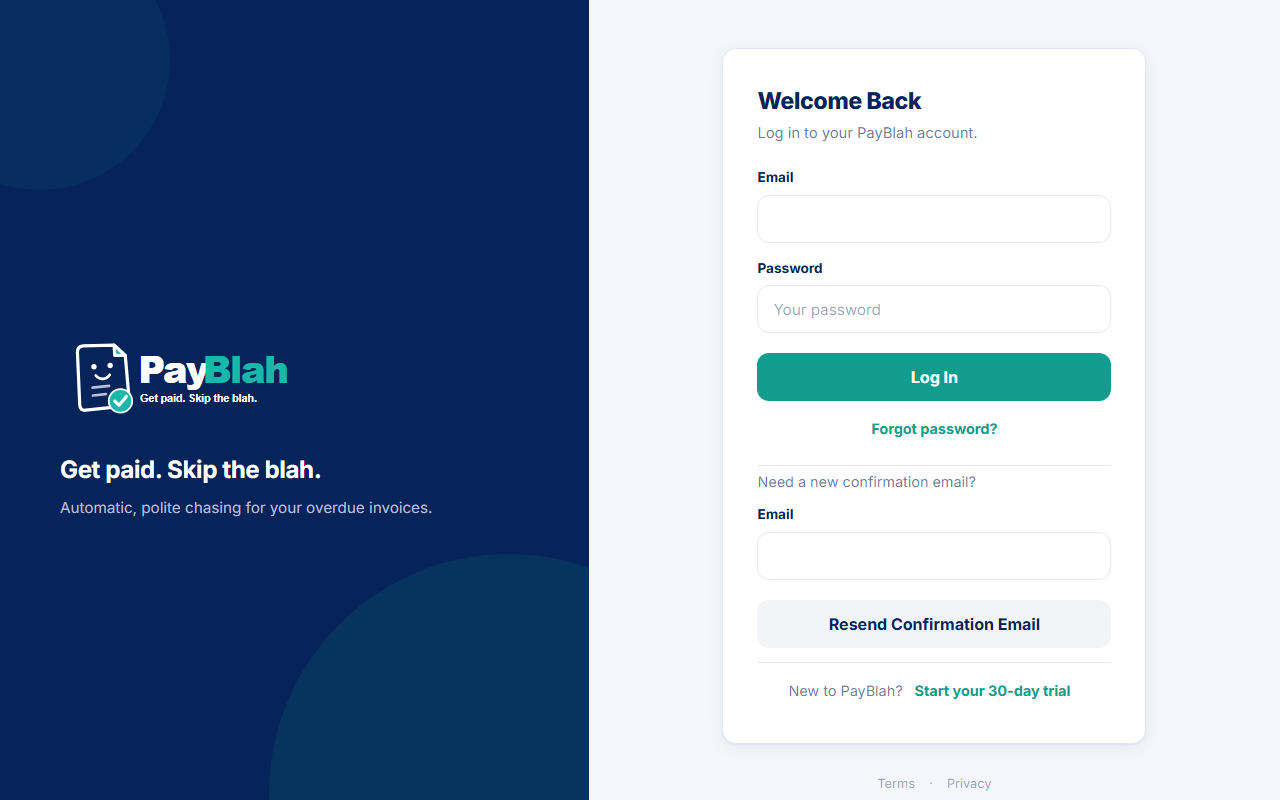
Reset a forgotten password from the login page. Completing the reset never signs you in. Other open sessions end the next time they try to continue.
Who can do this
- Anyone who can open the work email on the account.
- The emailed link lasts 60 minutes and works once.
Request a reset
- Open /app/login and click Forgot password?
- On Forgot your password?, enter Email.
- Click Send reset link.
- The next card is always Check your email, with If that address has a PayBlah account, a reset link is on its way to and the address you typed. The same card is shown whether or not the address has an account.
- Optional: Resend email or Back to log in.
Choose a new password
- Open the link from the email within 60 minutes.
- On Choose a new password, enter New password (at least 12 characters) and Confirm new password.
- Click Save new password.
What you should see
You return to login with Password updated. Log in with your new password. You are not signed in. Sign in with the new password (and complete One more step if a sign-in code is required).
Saving the new password increments an internal session generation. Other browsers and devices signed in as you fail closed on their next request. They must sign in again with the new password. There is no separate “revoke devices” screen.
If something goes wrong
- No email: confirm you used the signup address and check spam. The request page will not tell you whether the address exists.
- Expired or reused link: request a new one. The choose-password step works once.
- Never verified the mailbox: use Resend confirmation email on login first.
- Do not ask Support or another Admin to skip two-factor so you can get in. Use a recovery code on One more step after you can sign in with the new password.
What this does not do
- It never auto-signs you in from the email link.
- It does not change company, plan, or trial status.
- It does not send anything to your customers.