
Proving the work email is a one-time step. The first winning click marks the mailbox verified, turns on email sign-in codes, and shows recovery codes once. PayBlah does not open a session from the link.
Who can do this
- The person who signed up, using the same work email.
- The confirmation link is valid for 24 hours. After that, request a new one from login.
Confirm from the email (first use)
- Open the inbox for the work email you used at signup. Check spam or promotions if needed.
- Open the PayBlah confirmation message and click the link.
- On first success, the page Save your recovery codes appears. The lead says your email is confirmed and sign-in codes now protect the account.
- Store the ten codes in a password manager or print the page. Each code works once if you cannot reach email. This is the only time PayBlah can show them.
- Click Continue to login. You land on /app/login. You are not signed in.
What you should see
If the workspace is already ready, login may show Email confirmed. Log in with your password and sign-in code. If provisioning is still running: Email confirmed. We are preparing your workspace — log in with your password and sign-in code in a minute. Either way, the next step is a normal sign-in, including the One more step code screen.
If you click the same link again
A replay does not sign you in and does not mint a session. Login shows That email address is already confirmed. Log in with your password. Use your password (and sign-in code) on /app/login.
Resend the confirmation email
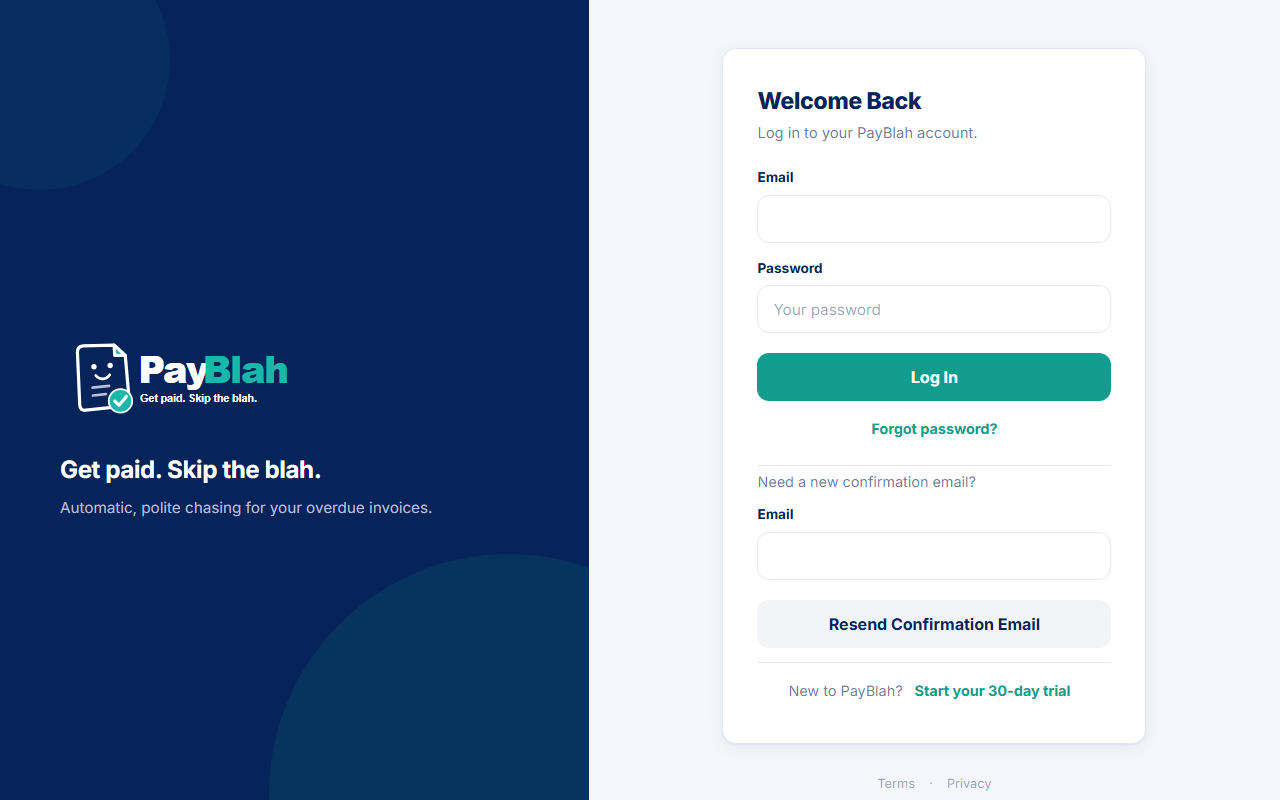
- Open /app/login.
- Find Need a new confirmation email?
- Enter the same work email.
- Click Resend confirmation email.
Wait a few minutes and check the inbox again. Resend is throttled. The notice is written so it does not reveal whether an address has an account.
If something goes wrong
- Expired or invalid link: That confirmation link has expired or is not valid. Resend from login.
- Unconfirmed mailbox at login: Confirm your email address first… Login will not open a session.
- Workspace still preparing after a later login: Your workspace is still being prepared. Wait a minute and try again.
- Never share recovery codes. Support will not ask you to turn two-factor off to “get back in.”
What this does not do
- It does not sign you in — not on first use, and not on replay.
- It does not start chasing or send anything to your customers.
- It does not change your password or plan.